
This step-by-step guide ensures your family’s memories are camera-captured with superior quality and context.
How To Digitize Old Photo Albums: Camera scanning or preferably mirrorless camera-digitizing is the superior method for preserving and documenting fragile vintage photo albums. This step-by-step guide ensures your family’s memories are captured with superior quality and context.
Continue with Care!
Archiving is a manual process. Before starting, ensure your workspace is stable and use the correct tools. Some actions suggested here can easily cause damage to precious originals. You are the steward of your own history! Please refer to my Disclaimer & CopyrightPage.
Don’t miss my video on Photo albums – Preserving Your Past
“We didn’t know we were making memories; we were simply having fun.”
💡 Looking for a different format?
If you are working with reflective physical media or specialty formats, explore my dedicated guides below:
- Prints & Artwork: Vintage Film ➖ Vintage Prints ➖ Artwork
- Historical Documents: Vintage Documents & Letters ➖ Daguerreotypes ➖ Tintypes & Ambrotypes
- Moving Image & Editing: Cine Film ➖ Post-Editing Classic & Vintage Images ➖ Learn how tethered shooting will revolutionize your capture sessions Camera Digitization: Tethered Shooting Explained
I. Essential Camera Setup
Camera digitizing vintage family photo albums at home first requires calibrating your mirrorless digital camera’s color processing to the precise light source used for digitization. By photographing a neutral reference target (such as an 18% gray card) placed directly on the copy stand’s base, the camera calculates and locks in a perfect neutral baseline. This crucial step ensures absolute color accuracy across your entire scanning session and minimizes color-cast correction during post-processing.

To ensure consistency across an entire album, preset the settings listed below into a camera custom setting (C1, C2, C3, etc.). Then, set your camera to that custom program mode before you start capturing.
Please note: Much of the process for digitizing photo albums is the same as for digitizing prints. Therefore, please also refer to my post, The Ultimate Guide to Digitizing Vintage Prints, which provides more information on holding down and flattening loose prints, among other things. The remainder of this post, however, will provide vital information specifically relevant to digitizing and archiving albums.
For the highest resolution, use the high-definition pixel-shift mode available on mirrorless cameras such as Panasonic Lumix, Sony, Olympus, and and some Pentax models. This feature typically needs to be configured in advance and then activated in the camera settings just before you begin capturing.
| Setting | Value | Rationale |
| Exposure Mode | Aperture Priority (A/Av) | Controls depth of field for optimal sharpness. |
| White Balance | Custom – 5600K | Matched to lights for consistent color reproduction. |
| Aperture | f/5.6 to f/8 | Typically the sharpest range for most lenses. |
| Focus | Manual Focus | Provides precise control (Peaking On). |
| Quality | RAW | Preserves maximum image data. |
| Self-Timer | 2 Seconds | Prevents camera shake. |
| Stabilizer | OFF | Avoids distortion when mounted on a copy stand. |
🚀I always place a circular polarizing filter and an appropriate lens hood (or matte black extension tube) on my camera. (To find out why, see my internal post), Camera-Digitizing Mistakes That Ruin Your Archival Quality (And Fixes)
II. Archival Pre-Capture & Folder Structure
Learn how tethered shooting will revolutionize your capture sessions Camera Digitization: Tethered Shooting Explained
Camera digitizing the entire album, including all pages (front and back), creates a “master map” that preserves the original curation context of the photos. This ensures you know exactly where each photo belongs if it’s removed. Aim for the highest possible resolution during this stage, as it serves as a safety net for subsequent close-up captures. Additionally, be vigilant for “hidden” history: if you remove prints from the album, capture an image of any writing found on the back.
Initial Album Capture: Before capturing individual prints or removing them:
- Document the front cover.
- Document the inside front cover.
- Document the rear cover.
- Document the inside rear cover.
- Document every full page of the album.
This attention to detail creates a comprehensive visual guide for later context. Do this in the highest possible resolution!
Folder Structure: Utilize identifiers for FFP (Front-Facing Pages) and RFP (Rear-Facing Pages). Example: [Prefix]-[Group]-[Album]-FFP01-IMG01.TIFF
Next Steps & Related Guides
- Eliminating Surface Glare: Struggling with reflections off glossy album paper or plastic sleeves? See my hardware setup guide: Polarizing Sheets & Lens Filters for Camera Digitizing.
- Digitizing Loose Photos: Capturing standalone prints alongside bound pages? Jump to my complete companion tutorial: The Ultimate Guide to Digitizing Vintage Prints.
- Rigid Hardware Rig: Need a stable vertical platform that accommodates heavy album bindings? Review my DIY setup: Build a $65 Pipe Flange Copy Stand Rig.
III. Three Options for Camera Digitizing Album Prints
Choice 1: Prints Remain on Page (Recommended for Fragile Albums)
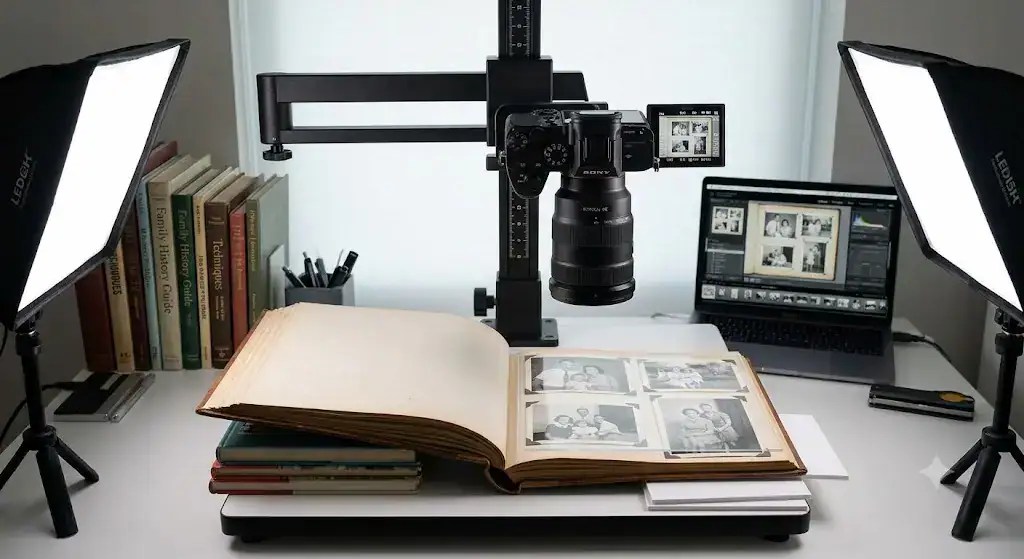
The prints remain secure, minimizing handling risk.
- Setup: Position the album on a copy stand. Use a stack of books to level the non-captured side, ensuring the target page is flat. Employ a two-light setup at 45° angles.
- Place small A5 sheets of foam board under the side currently being captured to ensure it is level and on the same plane as the camera on the copy stand.
- Flattening: Use small, clean, transparent acrylic sheets to hold down curled prints.
- Gutter Shadow: For photos spanning the center crease, capture the left and right sides separately and stitch them together in post-processing.
Choice 2: Camera Capturing Entire Album Pages (Recommended for Speed)
This is the fastest option, though it offers the lowest detail.
- Technique: Consistently frame the entire page.
- Use the ‘stack of books method’ described above.
- Post-Processing: Use High-Definition Mode if available. You will need to individually crop and straighten each print later using software.
Choice 3: Remove Prints from Pages (For Highest Quality)
This method allows for documenting rear captions but carries a high physical risk to the prints.

- Pro-Tip for Removal: If prints are stuck to “magnetic” pages (i.e., glued), use unflavored dental floss in a gentle “sawing” motion to cut through the brittle glue without tearing paper fibers. Do not lift the paper yourself; allow the dental floss to do the work. A hairdryer on a low/cool setting for 10 seconds can help soften stubborn adhesive.
- Capture: Position each print to fill the sensor and capture each one individually. Immediately photograph the reverse side if it contains notes. Refer to my post The Ultimate Guide to Digitizing Vintage Prints for the full story on individual paper print capture.
- Labeling: Mark the back of the print with its original location (e.g., FFP-01) using a soft graphite pencil.
Don’t Miss My Latest Post – Prints: Remove Staples & Decaying Tape

IV. Post-Capture & Final Steps
For prints that are difficult to flatten, use transparent, archival-quality acrylic sheets. These sheets must be spotlessly clean and dust-free. They provide physical protection and keep the print flat without adhesives. When using acrylic or any other shiny overlay, it is strongly recommended that you use polarized light. (Refer to my post for more information.) Polarizing Sheets & Lens Filters For Camera-Digitizing
Remember: For the final capture, image renaming, and saving process, follow the same principles as described in my Post. “Ultimate Guide to Digitizing Vintage Prints.“

Please don’t overlook the archive label
The example below shows an archive label attached to an album, with the corresponding folder structure on the archive computer to its left.
Remember to photograph the archive label for every album:
- Include an image of the label in the album’s specific archive folder.
- Adhere the physical label to the inside back cover of the album.

The Golden Rule: “Ultimately, camera digitizing aims to capture the maximum raw detail of your original film or print. If you avoid the trap of [Key mistake, e.g., low-resolution JPEGs or uneven lighting], your digital archives will easily outlast the physical media.”
Was This Post Helpful?
Building this free educational archive is a labor of love! If this post helped you solve your problem today, please leave a Like below to let me know you found it useful. Your support helps keep this site 100% free and ad-free for the archiving community.

Explore More Photo Digitization Guides on This Site
In this block you will find other professional media digitizing guides.
- The Ultimate Guide to Digitizing Vintage Prints
- The Ultimate Guide to Digitizing Vintage Film
- Guide to Digitizing Artwork: Essential Techniques
- An Overview of Digitizing Cine Film
- Instructions for Camera-Digitizing a Large Daguerreotype
- A Guide to Camera-Digitizing Tintypes and Ambrotypes
- Digitizing Vintage Documents and Letters
- Post-Editing Classic and vintage images
Elevate Your Digitizing Workflow: This block contains advanced professional media digitizing guides essential for your archiving.
- Dichroic Light Source In Color Film Scanning
- The Right Tool for the Task: Camera-Scanning vs. Smartphone Capture
- AI-Culling: How to Find the Top Ten in a Sea of Photos
- Safely Removing Rust and Tape: “The Great Un-Stapling”
- Beyond the Basics: Solving High Density / Warped and Unsearchable Media
- Mastering the Difficult Digits: Capturing Glass – Over large and 3D Media
- The Next Level of Archiving: QR Codes and NFC Tags
Master Methods: In this section, you will find vital solutions for archiving, equipment, titles/keywords, and controlling glare.
- Camera Scanning- Archive Structure & Priorities
- Camera Scanning Guide: The Essential Equipment Required
- Protect Your Vintage Photo Legacy: The Essential Guide to IPTC Metadata
- Polarizing Sheets & Lens Filters for Camera-Digitizing
Confused by any technical jargon in this guide? Check out my [Full 55-Term Jargon-Free Glossary] to get clear, simple definitions of all the archiving terms used here.
[Home]
External Links
1. Library of Congress: Preservation Guidelines for Digitizing
This is the “gold standard” for archival handling. It provides critical safety instructions that reinforce advice on fragile materials, specifically regarding why you should never apply pressure to brittle spines or use glass/Plexiglas to flatten photos if the media is flaking.
- Key Focus: Material safety, workspace cleanliness, and handling brittle paper.
- Source: Library of Congress – Collections Care
2. Amateur Photographer: How to Photograph Film Using Your DSLR
This guide is a highly technical, detailing how to use a lightbox, manage color casts, and use “inverted curves” in post-processing.
- Key Focus: Lightbox setups, RAW white balance adjustments, and film-specific metadata.
- Source: Amateur Photographer Magazine
3. The National Archives (UK): Digitisation Standards
This article explains the technical “why” behind using TIFF formats and ZIP (lossless) compression, and it sets professional benchmarks for resolution (PPI) that match museum-quality goals.
- Key Focus: File formats (TIFF vs. JPEG2000), checksums for corruption detection, and naming conventions.
- Source: The National Archives – Digitisation Guidance
I welcome comments and questions